Absence Approval Workflow (Vacation, Compensatory Time Off, Sick Leave)
Note
Reviewed in April 2026.
Time cockpit supports an absence approval workflow that can be enabled in Global Settings per absence type and reviewed in the absence calendar.
Vacation, sick leave, and compensatory time off can be created from User -> Vacation, User -> Sick Leave, and User -> Compensatory Time, as well as from the Time Sheet Calendar. All three absence types support full-day entries and hourly entries.
Note
Absence approvals are controlled in two places:
- Global Settings (per absence type)
- User master data (per user via "Absence approval required")
Absence types covered by approvals
The approval workflow can be enabled separately for all three absence types in time cockpit:
Once you enable approvals for a category, users must have their absences of that category approved by either their supervisor or a user with the HR-Admin role.
When is an absence approval required?
Approvals are only required for users who have this enabled in their user master data via the checkbox "Absence approval required".
For users where absence approval is not required, newly created absences are automatically marked as approved as long as the approval workflow is enabled in Global Settings for the corresponding absence type.
Tip
If approvals are enabled globally but a user does not require approval, their new absences will be approved automatically.
Important: Existing absences after enabling approvals
From the moment you enable the workflow in Global Settings and in user master data, unapproved absences, including absences in the past created before enabling this feature, are shown as unapproved in the absence calendar depending on permissions. Completed absences from before the activation must therefore be approved retroactively.
Important
After enabling the workflow, older absences may appear as unapproved and might need retroactive approval.
Absence calendar visibility by user role
The following table provides a quick overview of what each role can see and do in the absence calendar.
| Role | Absences shown in calendar | Absence type visible for colleagues | Pending approvals list | Can approve / reject | Additional filters |
|---|---|---|---|---|---|
| Time Tracking User | Assigned department | No | Own only | No | � |
| Department Lead | Own department + departments where user is department lead | Yes | Own + users in department lead's department | Yes | � |
| Human Resources Admin | Assigned department (default) | Yes | Own only (default) | Yes (on behalf of department leads) | Show all users, Department, User |
Time Tracking User
Sees all absences of users in the assigned department in the absence calendar. For colleagues' absences, the absence type is intentionally not visible. In the list above the calendar, only the user's own unapproved absences are shown.
Note
This privacy setting prevents users from identifying whether a colleague is on vacation, sick leave, or compensatory time off.
Department Lead
Sees all absences of users in the assigned department and also absences of users in any departments where the user is assigned as department lead.
In the absence list, the department lead sees their own unapproved absences as well as unapproved absences of users in the relevant departments.
Human Resources Admin
Sees all absences of users in the assigned department in the absence calendar. In the list of unapproved absences, only the user's own unapproved absences are shown by default.
As a Human Resources Admin, you can approve absences for all users on behalf of department leads. To do this, you can use the additional filters:
- Checkbox "Show all users"
- Dropdown "Department"
- Dropdown "User"
Tip
Use "Show all users" only when needed, then narrow down with Department and User to keep the calendar and approval list manageable.
Approving and rejecting absences
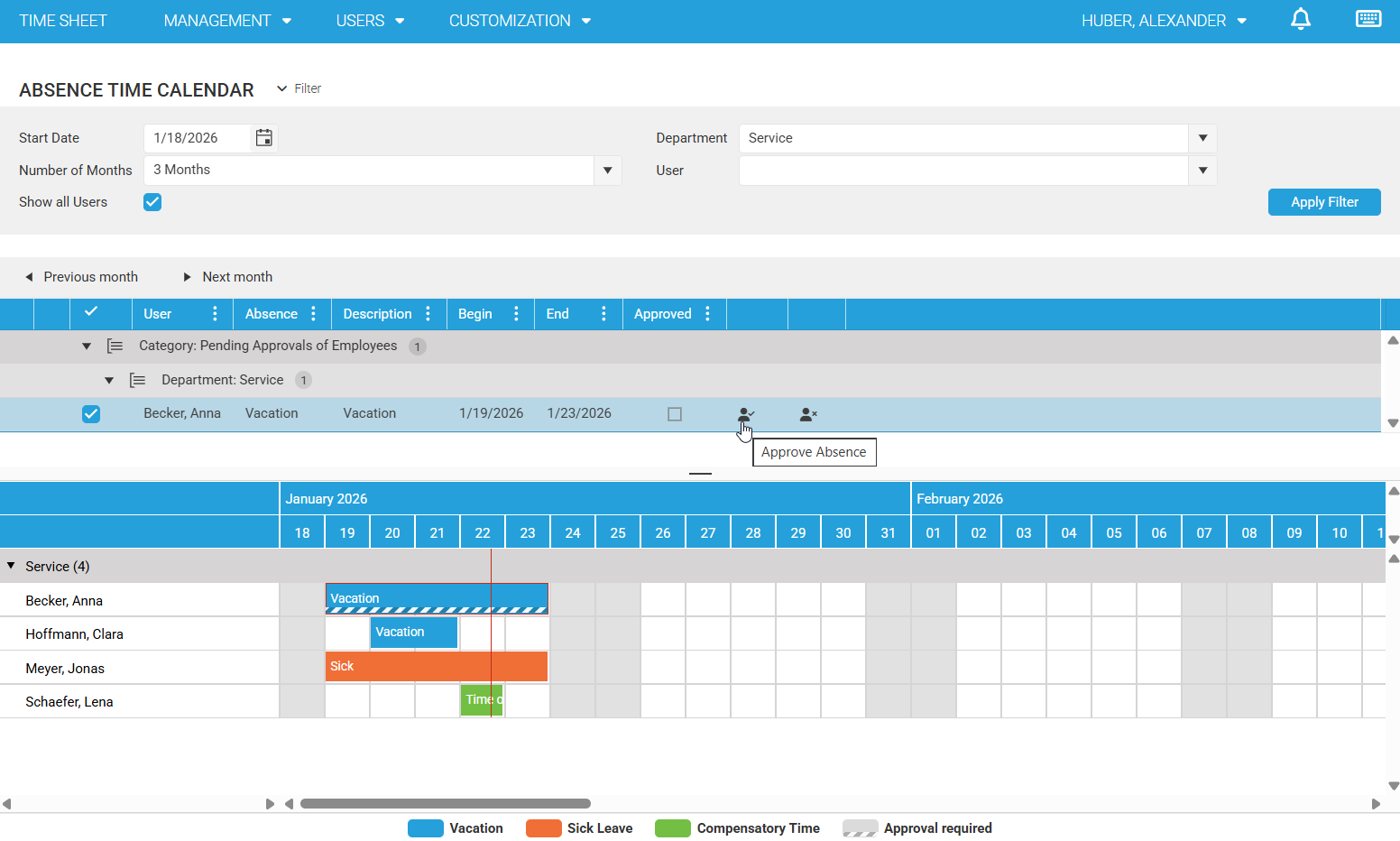
Department Leads and Human Resources Admins can approve or reject absences with pending approval in the list above the absence calendar. This is done using the two actions in the rightmost columns.
Before approving or rejecting, you can select a row to preview the absence in the calendar below. The calendar automatically jumps to the start date of the absence. This makes it easier to compare it with existing absences of other users in the same department and consider overlaps during the approval decision.
Tip
Select an absence in the list to highlight it in the calendar and jump directly to the relevant date range.
View as Human Resources Admin:
Automatic notifications in the approval workflow
When a user creates a new absence, the department leads of that user are automatically informed about the pending approval via a notification in time cockpit.
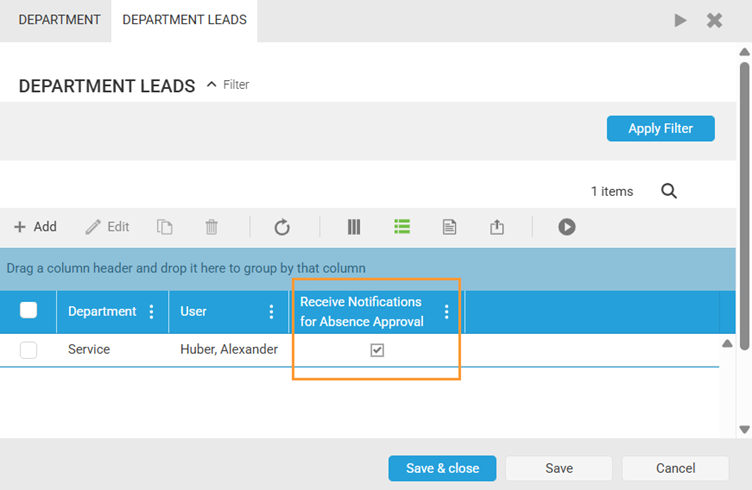
If needed, notifications for department leads can be disabled per department lead in the department master data.
If an absence is approved or rejected, the notifications created for the department leads are automatically deleted.
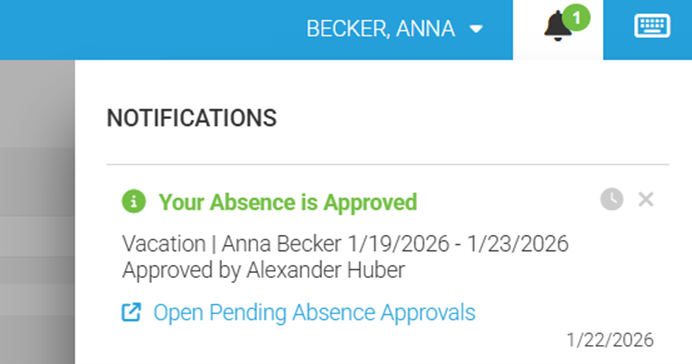
After approval or rejection, the requesting user also receives a notification including when and by whom the absence was processed. In case of rejection, the processing person can provide a rejection reason, which is included in the notification to the requesting user.
Additionally, when an absence is rejected, it is deleted. Notifications for approved absences are not automatically deleted and can be kept as written confirmation.
Warning
Rejected absences are deleted. Approved-absence notifications are kept and can serve as written confirmation.