November 2018
Web Client
Generate Reports in Actions
The web client now supports the generation of SSRS reports from within an action. Up to now, only the Full Client was able to generate a report with an action. This was because the action was able to save the result of the report generation on a user's hard disk.
The web client uses a different approach. It temporarily saves a generated report to an Azure Blob Storage from where a user can download the report afterwards. The following example how to return a generated report in a time cockpit action
clr.AddReference("System")
clr.AddReference("System.IO")
clr.AddReference("System.Text.Encoding")
clr.AddReference("TimeCockpit.Windows.Controls")
from System.Text import Encoding
from System.Collections.Generic import List, Dictionary, IEnumerable
from TimeCockpit.Data.QueryLanguage import QueryParameter
from TimeCockpit.Windows.Controls import ReportFormat
from TimeCockpit.Windows.Controls.Reporting import ReportBuilder, ReportConfiguration

def actionSample(actionContext):
	dataContext = actionContext.DataContext
	parameters = List[QueryParameter]()
	configuration = ReportConfiguration()
	data = Dictionary[String, IEnumerable[EntityObject]]()

	customerQuery = '''From Current In APP_Customer
	        Order By Current.APP_Code
	        Select New With
	        {
	            .ObjectUuid = Current.APP_CustomerUuid,
	            Current.APP_Country,
	            Current.APP_Code,
	            Current.APP_CompanyName,
	            Current.APP_Phone,
	            Current.APP_Street,
	            Current.APP_ZipCode,
	            Current.APP_Town
	        }'''
	customers = dataContext.Select(customerQuery)
	data.Add("Customers", customers)

	userQuery = '''From U In APP_UserDetail Where U.APP_UserDetailUuid = @UserDetailUuid Select New With { U.Firstname, U.Lastname }'''
	users = dataContext.SelectWithParams({ "Query": userQuery, "@UserDetailUuid": dataContext.Environment.CurrentUser.UserDetailUuid })
	data.Add("User", users)

	reportDefinition = # load report definition from e.g. EntityViewReport table

	reportBuilder = ReportBuilder(dataContext)
	bytes = reportBuilder.GetReport(
		reportDefinition,
	    ReportFormat.Pdf,
	    data,
	    parameters,
	    configuration)

	result = FileActionResult()
	result.ContentType = "text/plain"
	result.Inline = False
	result.FileDownloadName = "customer-report.pdf"
	result.FileContents = bytes
	actionContext.ActionResult = result
Basically, the only thing to do is to create an instance of FileActionResult, assign the generated report to result.FileContents and set the action's ActionResult.
This way of creating a report is especially handy if you do not have a time cockpit list to assign a report to.
Support Multiple Datasets in Reports
Up to now, both the Full Client and the Web Client did support just one dataset per report. With the new version, multiple dataset per report are supported.
configuration = ReportConfiguration()
data = Dictionary[String, IEnumerable[EntityObject]]()

customerQuery = # some customer query
customers = dataContext.Select(customerQuery)
data.Add("Customers", customers)

userQuery = # some userdetail query
users = dataContext.SelectWithParams({ "Query": userQuery, "@UserDetailUuid": dataContext.Environment.CurrentUser.UserDetailUuid })
data.Add("User", users)

reportDefinition = # load report definition from e.g. EntityViewReport table

reportBuilder = ReportBuilder(dataContext)
bytes = reportBuilder.GetReport(
	reportDefinition,
    ReportFormat.Pdf,
    data,
    parameters,
    configuration)
This is especially helpful if you want to give the data in your report more structure.
Performance Improvements in Timesheet Calendar
In previous versions, if you had a lot of time sheet entries in a week, the performance when adding or changing entries decreased, because the whole week was redrawn. Now, the changes in the time sheet calendar are tracked more granularly and only those time sheet entries that have changed are redrawn on the screen.
Create Items from a RelationCell
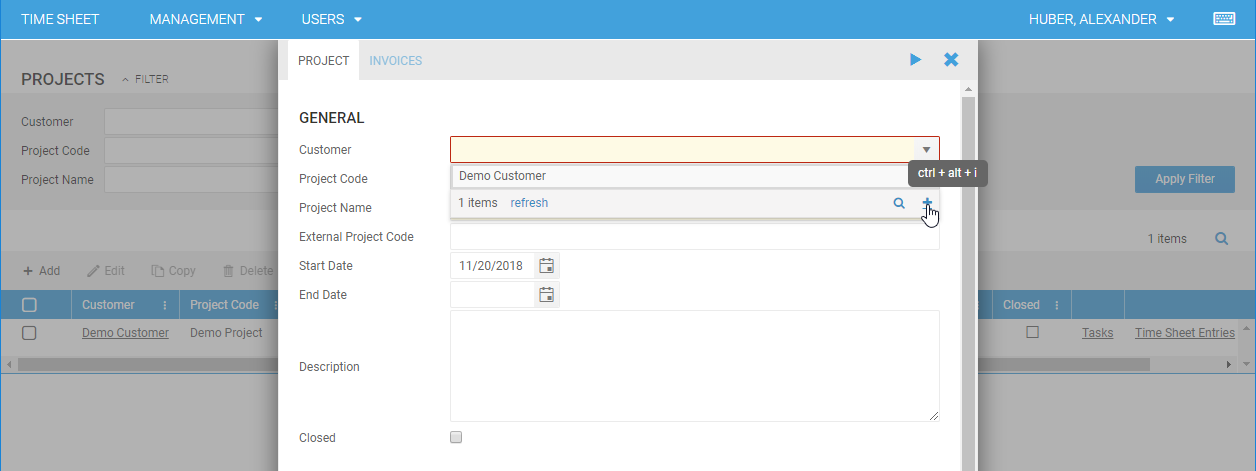
This is a feature we had in the Full Client for a long time and it is also available in the web client now. If you open the relation cell you will find a + sign in the footer of the relation cell. If you click it, a new form for a new e.g. customer entry will appear. There is no need anymore to browse to the master data lists to add data.
Working Time Limits
Starting with 2018/09 a new working time limit for Austria came into effect. With the new version, we have created a new working time limit that reflects the changes. If you still use the Full Client, please update your time cockpit to the latest version. If you do not have a Squirrel build, please download the latest version from our website. If you already have an auto-updating Squirrel build, you should have already been prompted to update time cockpit.
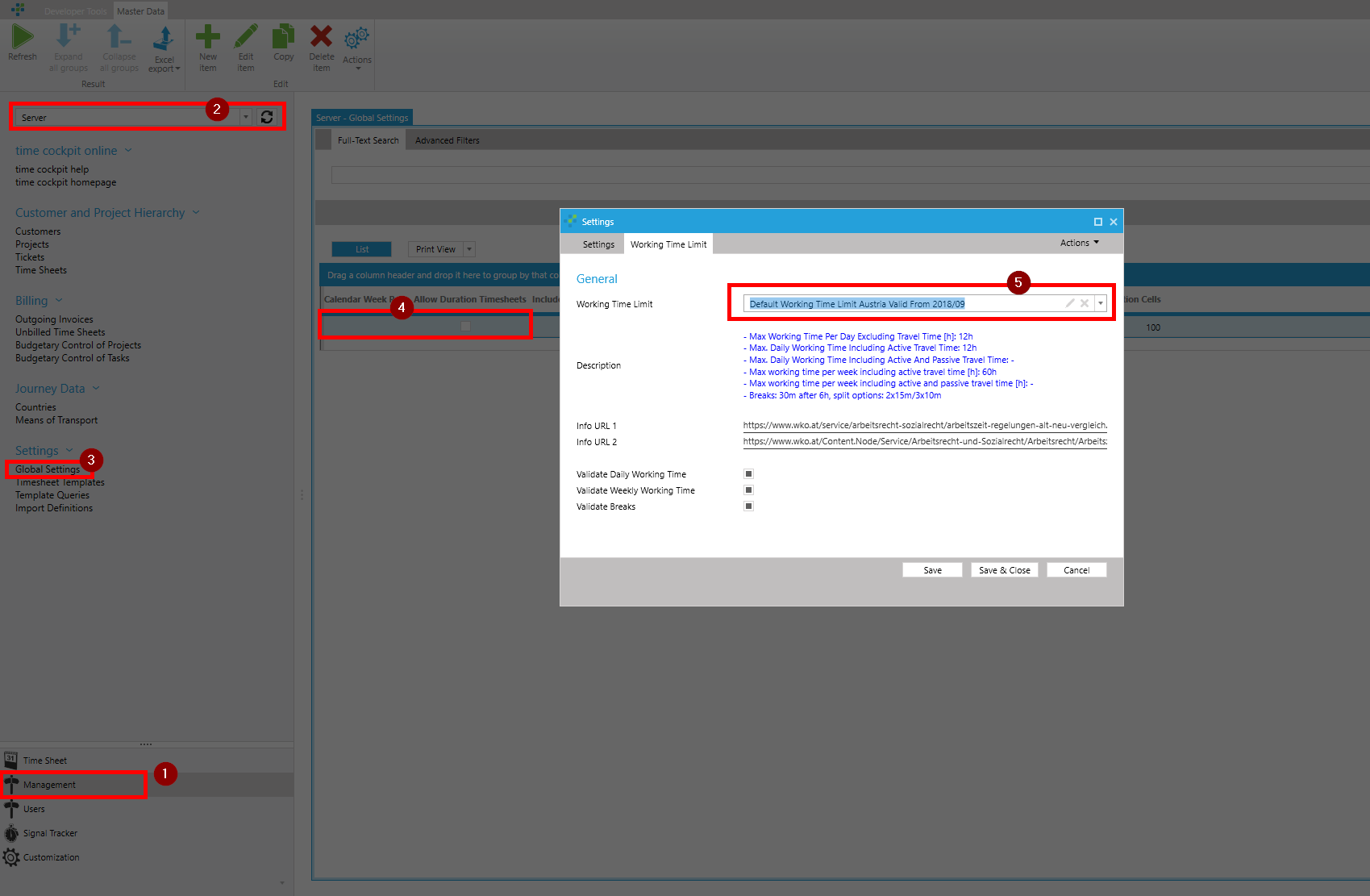
To enable the new limit, navigate to your global settings and set the limit to Default Working Time Limit Austria Valid From 2018/09.
The main changes are:
- Max Working Time Per Day Excluding Travel Time [h]: 12h
- Max working time per week including active travel time [h]: 60h
For details refer to:
- https://www.wko.at/service/arbeitsrecht-sozialrecht/arbeitszeit-regelungen-alt-neu-vergleich.html
- https://www.wko.at/arbeitszeit/ruhepause
Bug Fixes & Improvements
- DisplayProperty in RelationCell was not used in HTML5 when query is auto generated
- Html encode tooltips in calendar
- Use USR_TimesheetUserDetailSelectionList in HTML5 client
- Upgraded shell to Angular 7