Timesheet Suggestions / Share Timesheet
Time cockpit includes a Timesheet Suggestions feature that lets you share one or more existing timesheet entries with other users. The shared items appear for the receiver as suggestions in the Timesheet Calendar. The receiver can then accept a suggestion (which creates a new timesheet entry based on the shared template) or dismiss it.
Use case
A common scenario is:
- A consultant tracks time against a specific customer/project/task.
- A colleague worked on the same work package and should book time similarly, but is unsure about the correct scope, description, or duration.
- Instead of sending a long explanation by chat/email, the consultant shares an existing timesheet entry as a suggestion.
- The colleague reviews it directly in the calendar and accepts it (optionally editing details before saving).
This helps teams standardize bookings and reduces back-and-forth.
Overview
Timesheet Suggestions consists of two parts:
- Share: A sender shares selected timesheet entries to one or more receivers with a short message.
- Review: Receivers see suggestions in their Timesheet Calendar and can either:
- Edit & accept (creates a new timesheet entry based on the suggestion)
- Dismiss (marks the suggestion as dismissed)
Suggestions are stored as records in APP_TimesheetSuggestion and include a serialized snapshot of the original timesheet entry plus sender/receiver, message, and time range.
Key functionalities
Share selected timesheet entries
- Share action is available in the Timesheet Calendar toolbar when the feature is enabled.
- You can share multiple selected timesheet entries in one go.
- You must provide:
- Receivers (one or more enabled, non-hidden users; you cannot select yourself)
- Message to receivers (required; max length 100)
Suggestions appear as calendar items
- Suggestions are shown in the receiver’s Timesheet Calendar for the matching time range.
- They are shown as read-only items with the sender and message (e.g. “Suggestion by …”).
Accepting a suggestion
- The receiver can choose Edit and accept suggestion.
- Time cockpit opens the normal timesheet entry form with pre-filled values from the shared entry.
- After the receiver saves the entry, the suggestion is marked as accepted.
Dismissing a suggestion
- The receiver can choose Dismiss suggestion.
- A confirmation dialog is shown.
- The suggestion is marked as dismissed.
Notifications (if supported by the tenant)
If your tenant supports system notifications and Timesheet Suggestions is enabled, time cockpit adds a dedicated notification provider for timesheet suggestions. Depending on your notification setup, new suggestions may also show up in your notifications (bell icon).
Prerequisites & dependencies
To use Share Timesheet / Timesheet Suggestions, all of the following must be true:
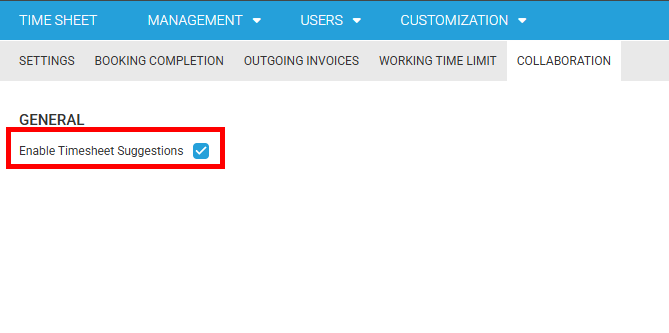
- Enabled in Global Settings
- Global Settings flag:
Enable Timesheet Suggestionsmust betrue.
- Global Settings flag:
- Access to Timesheet Calendar
- Users must have permission to view/create timesheets in the Timesheet Calendar.
Note
If the feature is not installed or not enabled, the Share button and related UI won’t be available.
Enable Timesheet Suggestions (Global Settings)
- Open Global Settings:
- Locate the setting Enable Timesheet Suggestions (technical name
APP_TimesheetSuggestionsEnabled). - Set it to enabled/true.
- Refresh the web app.
Tip
If you don’t see the setting in the Global Settings form, it may not be included in your current Global Settings UI customization.
In that case you’ll need to add the APP_TimesheetSuggestionsEnabled property to your Global Settings form customization.
How to use the feature
Share a timesheet entry (sender)
Open the Timesheet Calendar.
Select one or more existing timesheet entries.
Use one of these options:
- Click Share in the toolbar (share icon).
- Use the context menu item Share.
- Keyboard shortcut:
Ctrl + M.
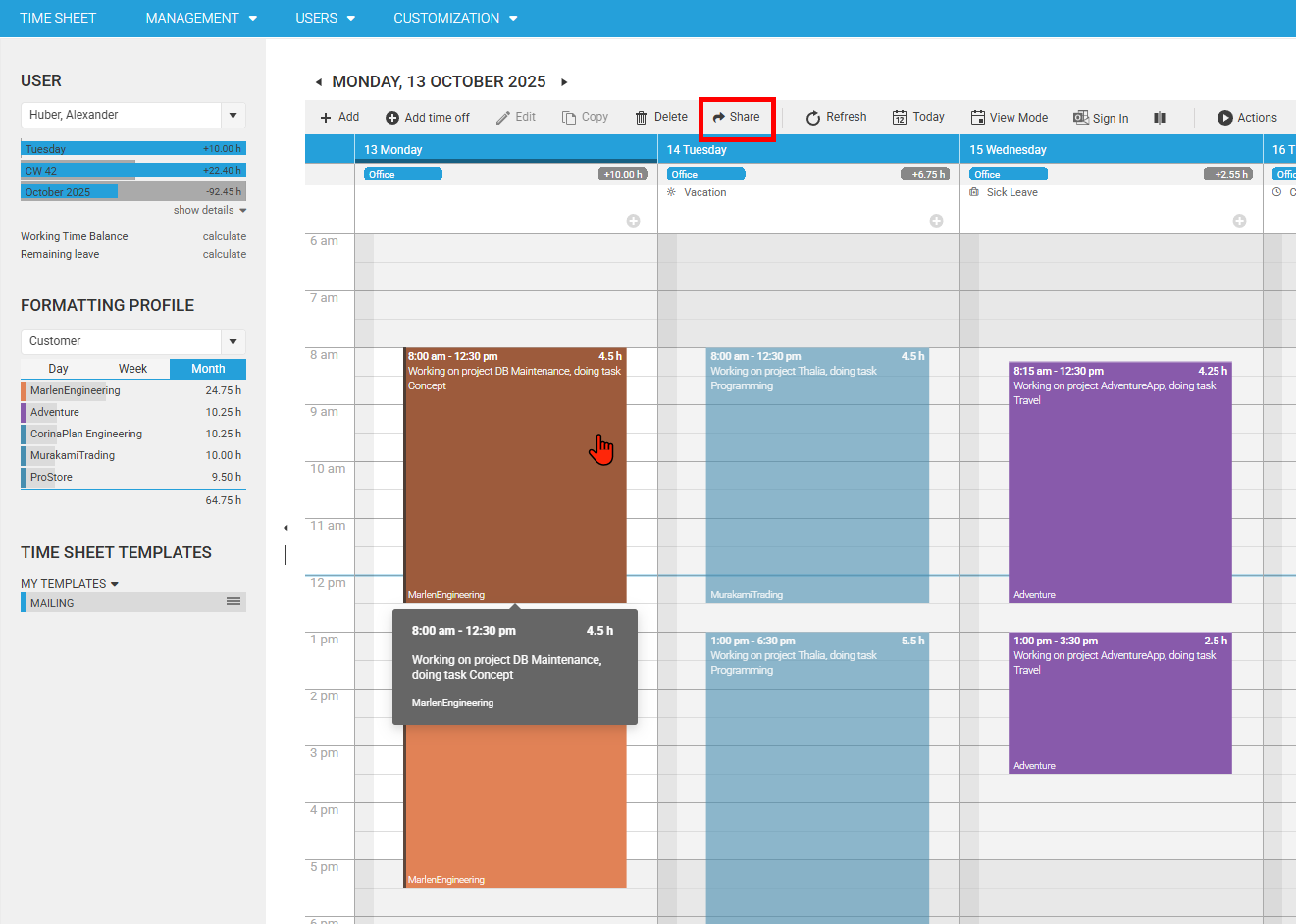
In the Share dialog:
- Choose one or more Receivers.
- Enter a Message to receivers.
Confirm Share.
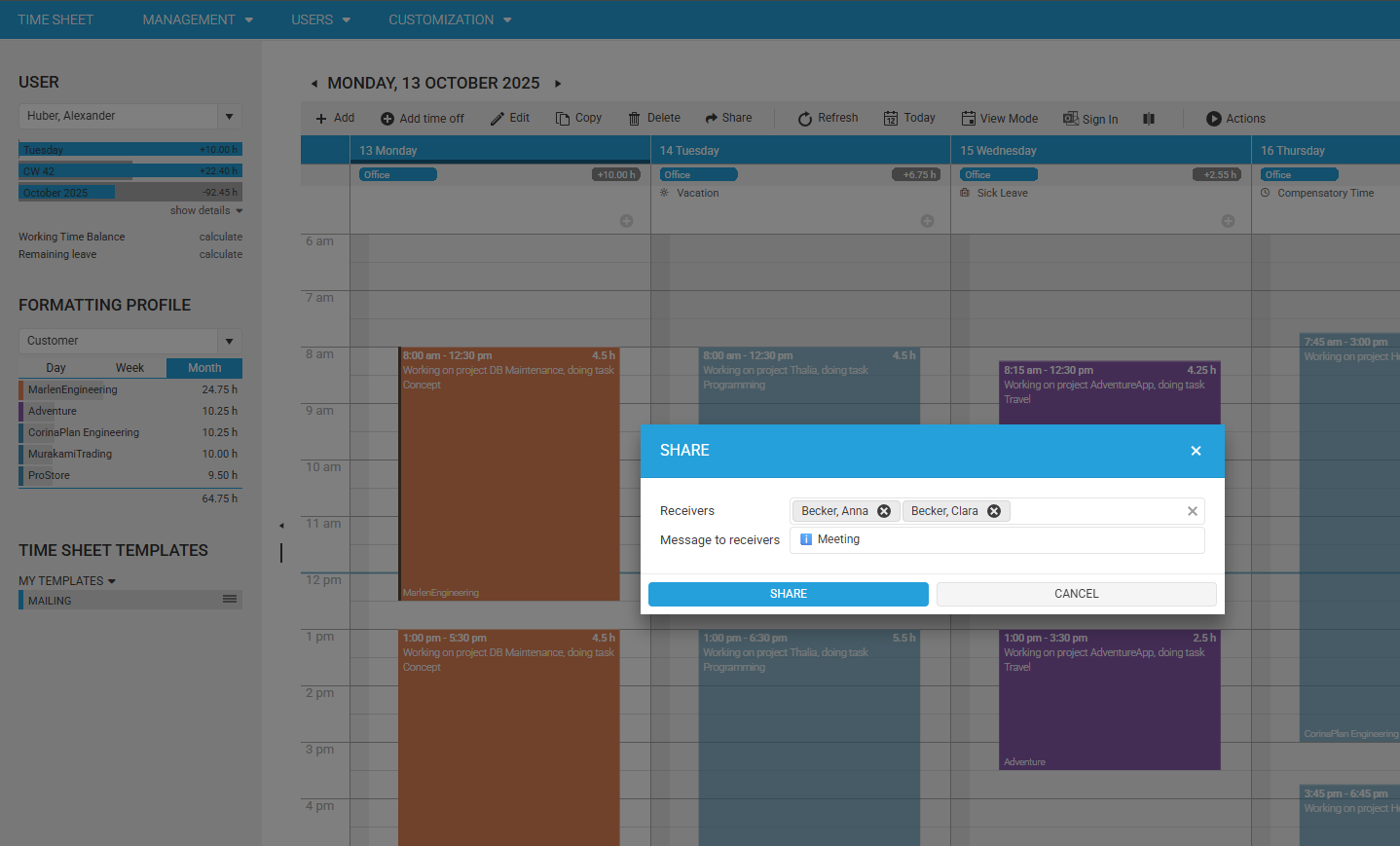
After sharing, time cockpit shows a confirmation notification like:
- “Timesheet entry "…" has been shared.”
If notifications are enabled in your tenant, receivers may also get a notification about the new suggestion.
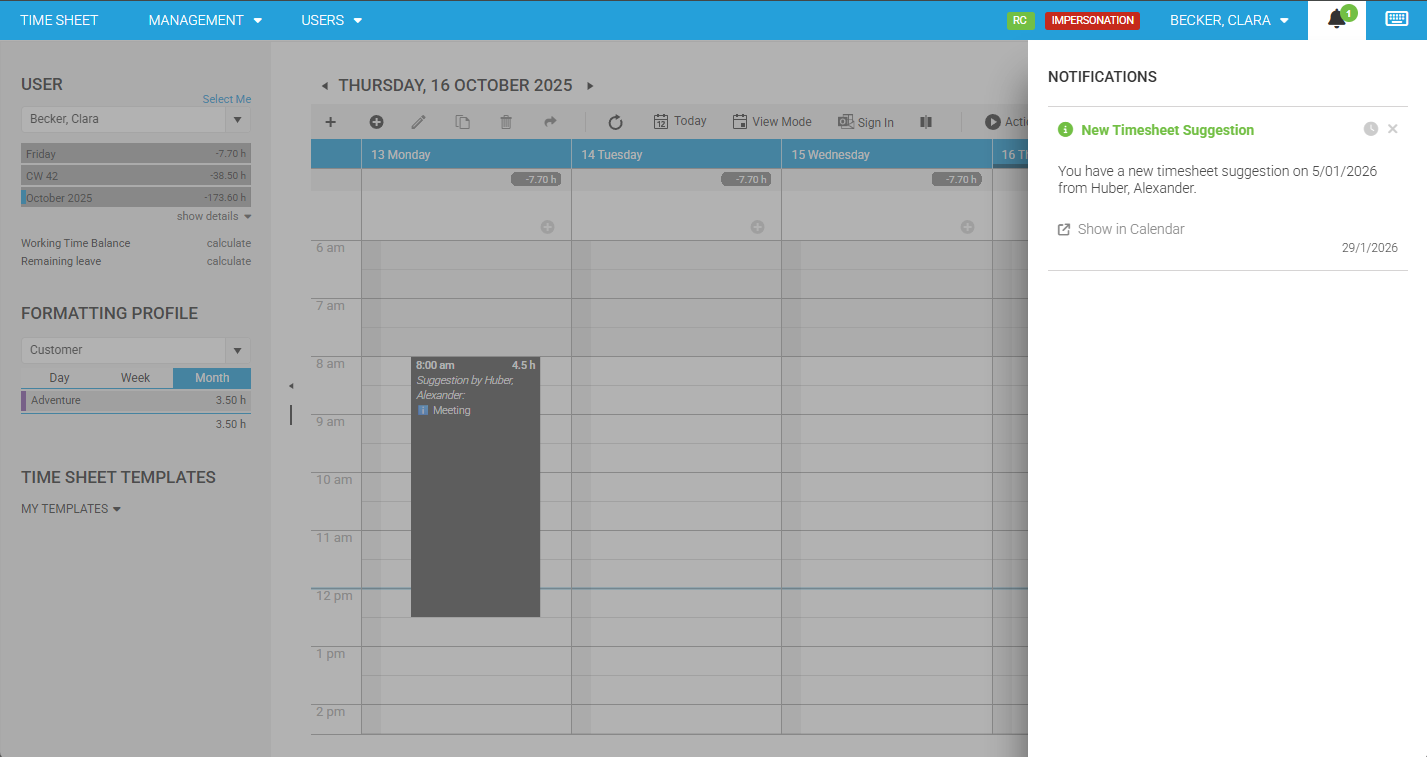
Review suggestions (receiver)
- Open the Timesheet Calendar.
- Navigate to the day/week that contains the suggested time range.
- Suggestions appear as calendar items that include the sender and the message.
Accept (create a real timesheet entry)
- Click the suggestion item.
- Choose Edit and accept suggestion (or just double-click the suggestion).
- Review and adjust the pre-filled values as needed.
- Save the timesheet entry.
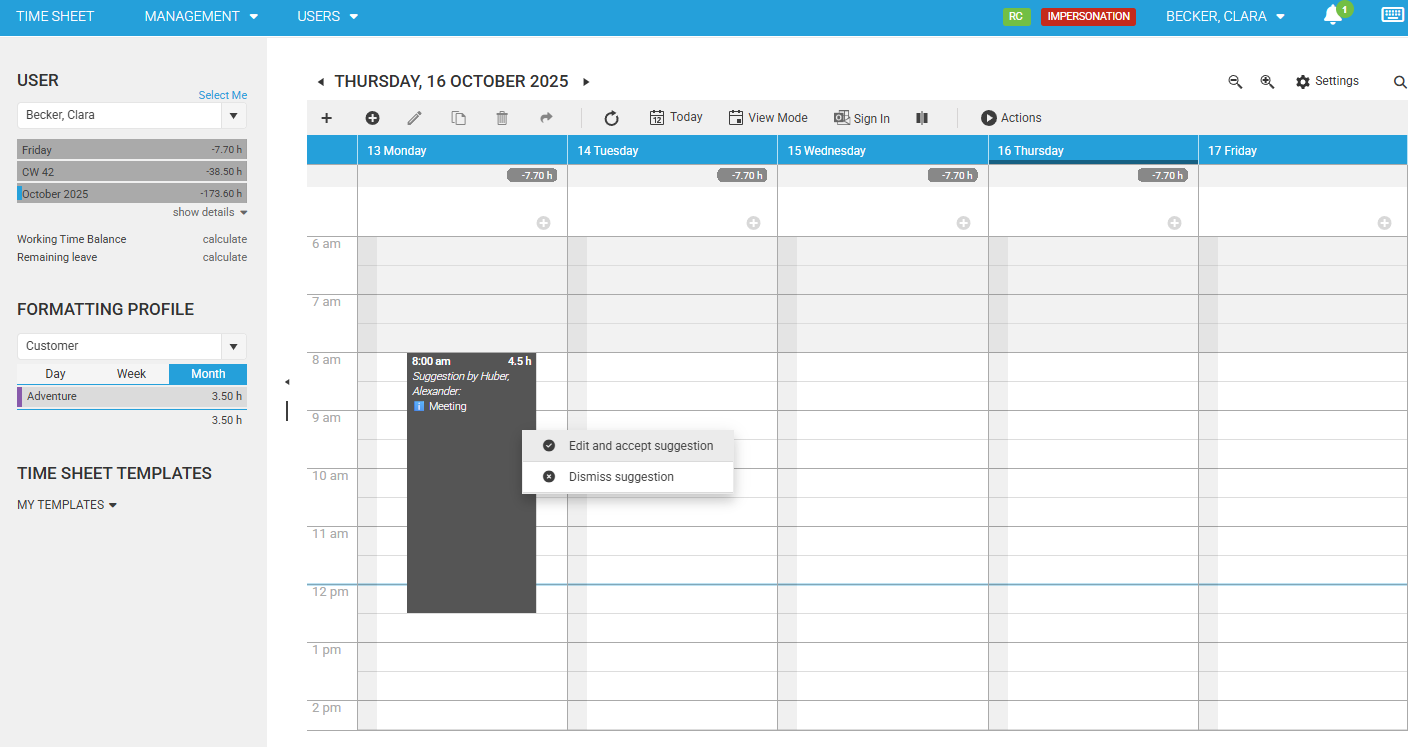
The suggestion is then marked as accepted and will no longer be shown as an open suggestion.
Dismiss
- Click the suggestion item.
- Choose Dismiss suggestion.
- Confirm the dialog.
The suggestion is marked as dismissed and will no longer be shown as an open suggestion.
Notes & limitations
- Suggestions are shown only if they are not accepted and not dismissed.
- Suggestions are loaded for the currently selected user and the currently visible date range in the calendar.
- The receiver list includes users that are enabled and not hidden, excluding the current user.
- Message length is limited to 100 characters.