Dark Mode in time cockpit
Dark mode changes the time cockpit web client to a dark color theme. It can reduce glare in low-light environments and provides a consistent dark appearance across the timesheet calendar, lists, forms, and dashboards.
Enable dark mode
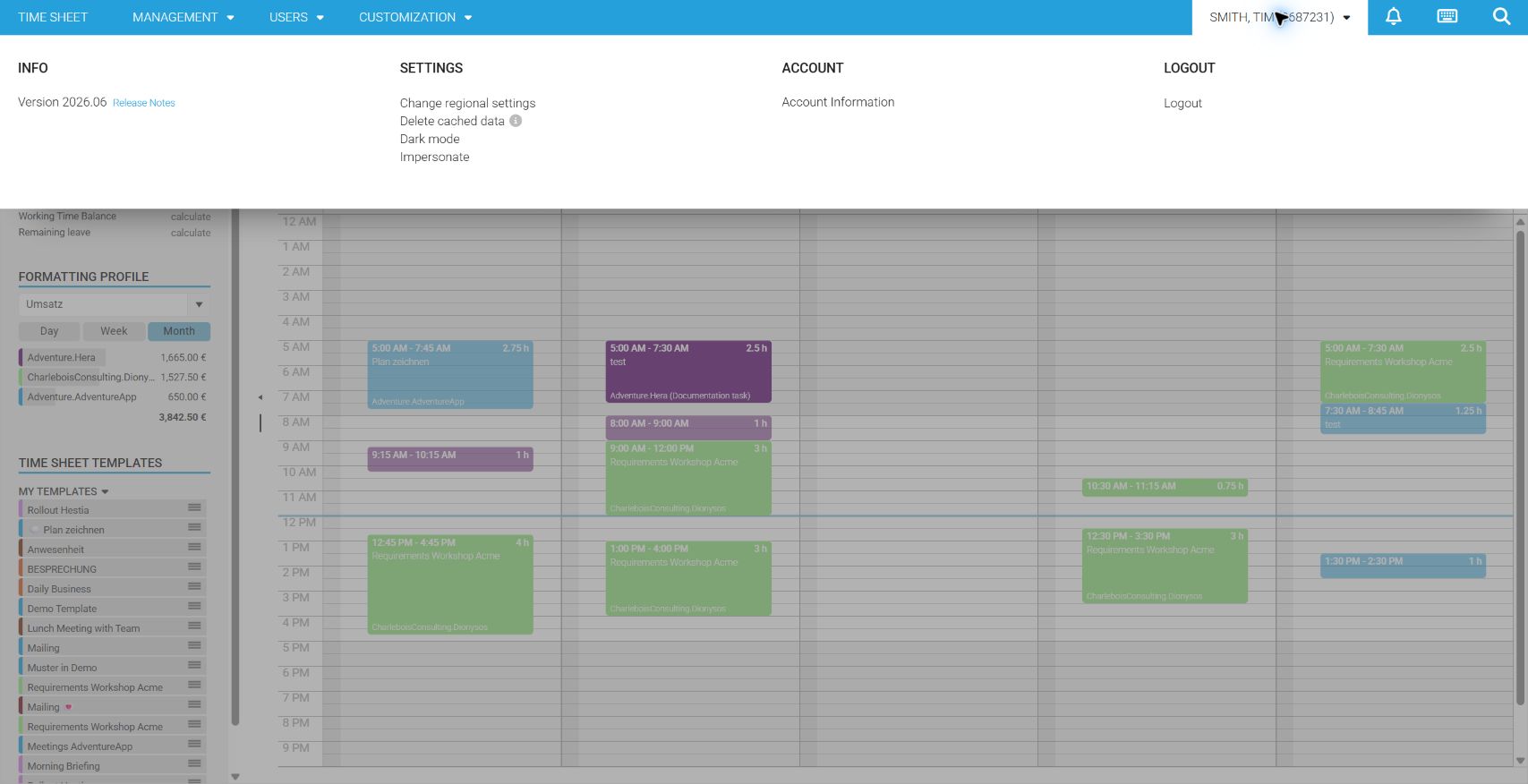
- Open the user menu by selecting your name in the upper-right corner.
- In the Settings section, select Dark mode.
- The web client applies the dark theme immediately.
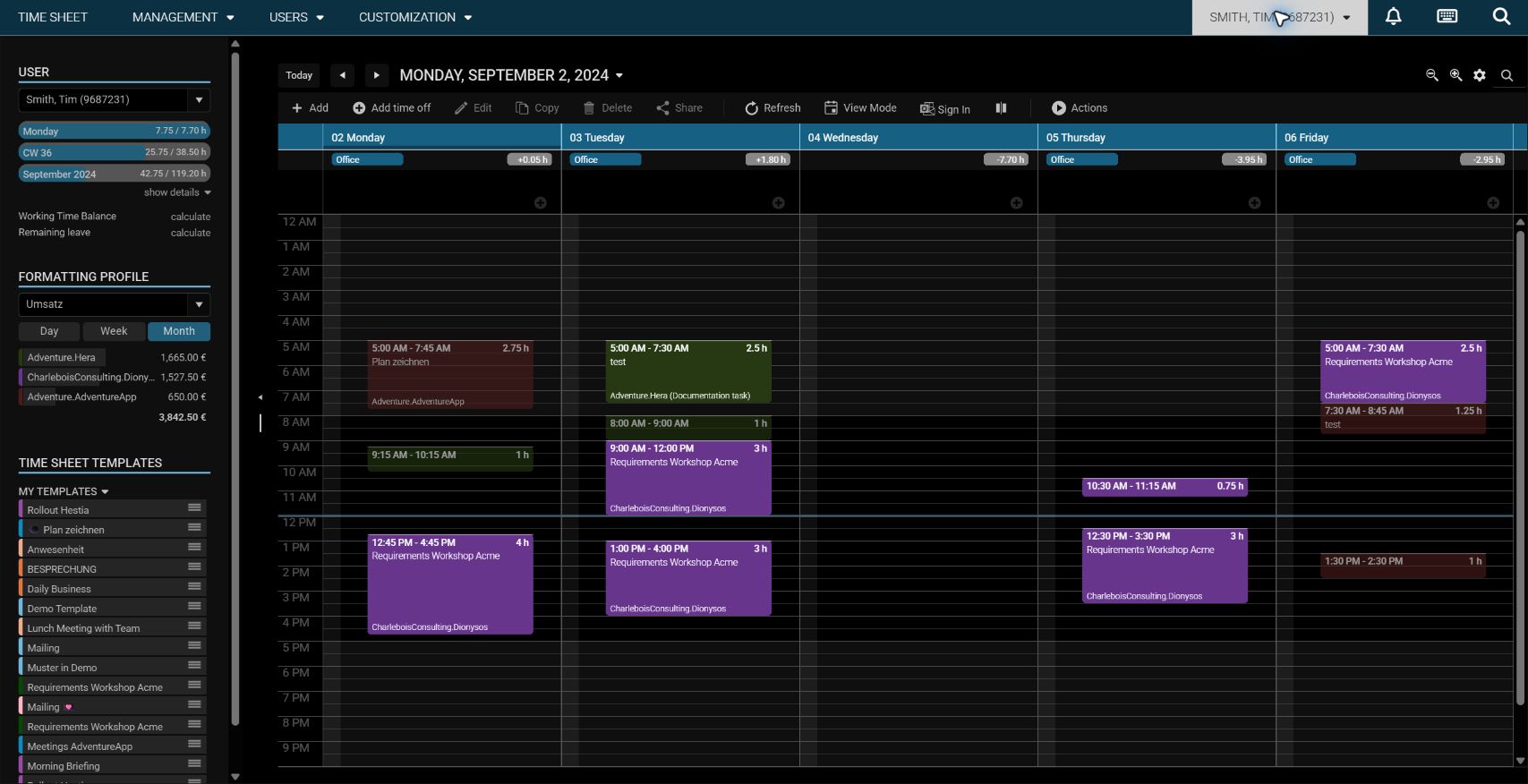
The following example shows the timesheet calendar with dark mode enabled:
Switch back to light mode
Open the user menu again and select Dark mode to clear the setting. The web client immediately returns to the light theme.
Tip
Dark mode changes the appearance only. It does not change your calendar data, list configuration, dashboards, or permissions.
Dark mode was introduced with the June 2026 release.