Office 365 Integration
Connect time cockpit with your Office 365 account to display Outlook appointments and sent emails directly in your time sheet calendar, providing a holistic view of your workday.
Tip
Want to streamline your time tracking? Office 365 integration helps you track time more accurately by syncing your calendar and emails. Learn more about time tracking integrations.
Overview
Office 365 integration brings your Microsoft 365 data into time cockpit:
Calendar Appointments:
- View Outlook appointments alongside timesheet entries
- Transform appointments into billable time entries with one click
- See meeting schedules while tracking time
Sent Emails:
- Display sent emails from Outlook in your calendar
- Identify client communication and activities
- Reference email threads when creating time entries
Benefits:
- ✅ Reduce manual time entry (convert appointments to timesheets)
- ✅ Improve accuracy (see what you actually did during the day)
- ✅ Capture all activities (meetings, emails, focused work)
- ✅ Context for retroactive time tracking
Supported Office 365 Services
Microsoft Outlook Online (web-based)
- ✅ Calendar appointments
- ✅ Sent emails
- ✅ OAuth authentication
Microsoft Outlook Desktop (via Office 365 sync)
- ✅ Calendar sync through Office 365 online
- ✅ Email sync through Office 365 online
Requirements:
- Active Office 365 / Microsoft 365 subscription
- Web browser access to time cockpit (web.timecockpit.com)
- Office 365 account credentials
Note
The integration connects to Office 365 cloud services. If you use a standalone Outlook installation without Office 365, this integration is not available.
Configuring Office 365 Integration
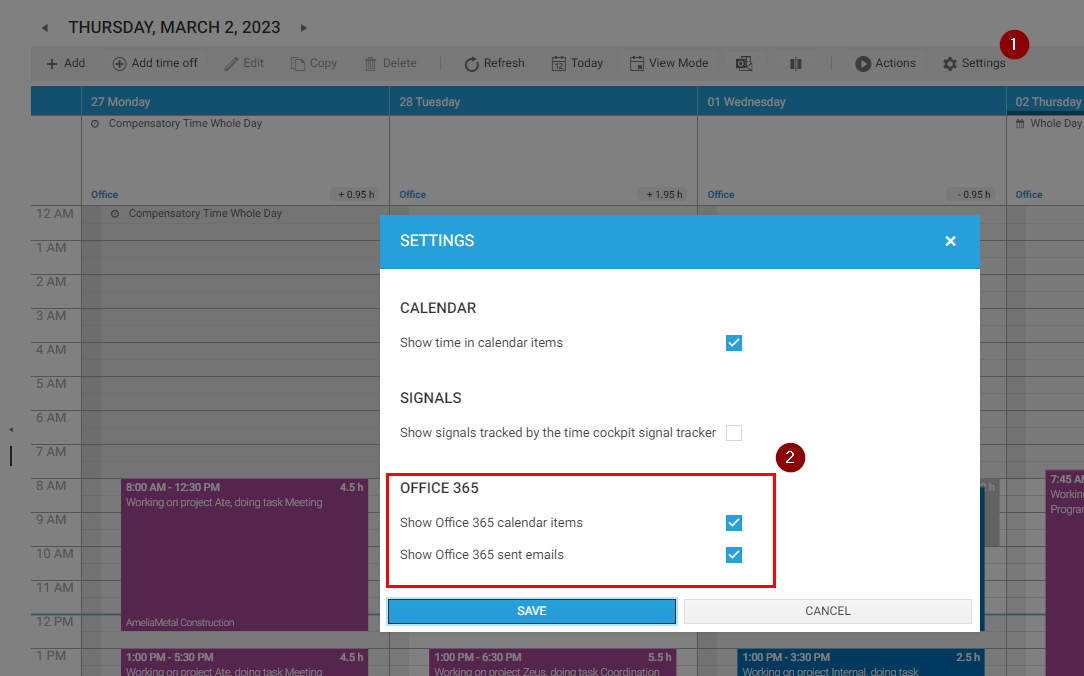
Step 1: Enable Office 365 Features
- Open Time Sheet Calendar in time cockpit
- Click Settings (gear icon or settings button)
- Enable the following options:
- ☑ Show Office 365 calendar items
- ☑ Show Office 365 sent mails
- Click Save or Apply
Step 2: Sign In to Office 365
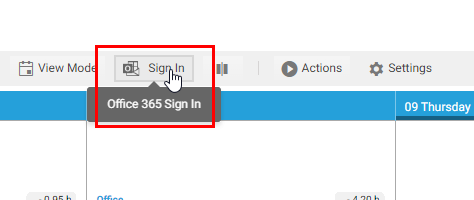
- In the time cockpit toolbar, click Sign In (Office 365 login button)
- Office 365 login window opens (may open in background - use Alt+Tab to find it)
- Enter your Office 365 email address
- Enter your Office 365 password
- Approve the permission request:
- Time cockpit requests read access to:
- Your calendar
- Your sent emails
- Click Accept or Allow
- Time cockpit requests read access to:
- Login window closes automatically upon success
Note
The OAuth login may open in a background tab or window. If you don't see the login prompt immediately, check your open windows (Alt+Tab on Windows, Cmd+Tab on Mac).
Step 3: Refresh to Load Data
- Click Refresh button in time cockpit toolbar
- Wait for data to load (may take 10-30 seconds depending on calendar size)
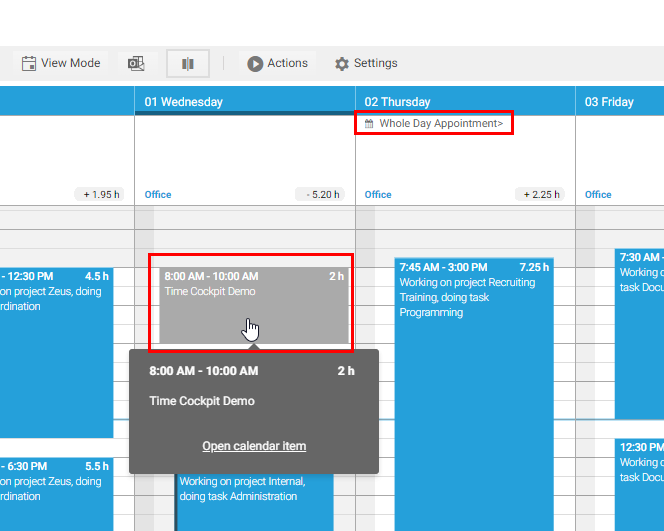
- Outlook appointments and emails now appear in your calendar
Using Office 365 Data in Time Tracking
Viewing Appointments in Calendar
Appointments appear in calendar:
- Displayed alongside timesheet entries
- Different visual style (may be slightly transparent or different color)
- Show appointment time, title, location
- Cannot be edited in time cockpit (read-only)
Calendar views:
- Day View: See hourly schedule with appointments
- Week View: Overview of meetings throughout week
- Month View: High-level view of appointment distribution
Converting Appointments to Timesheet Entries
Transform an Outlook appointment into a billable time entry:
Quick Conversion:
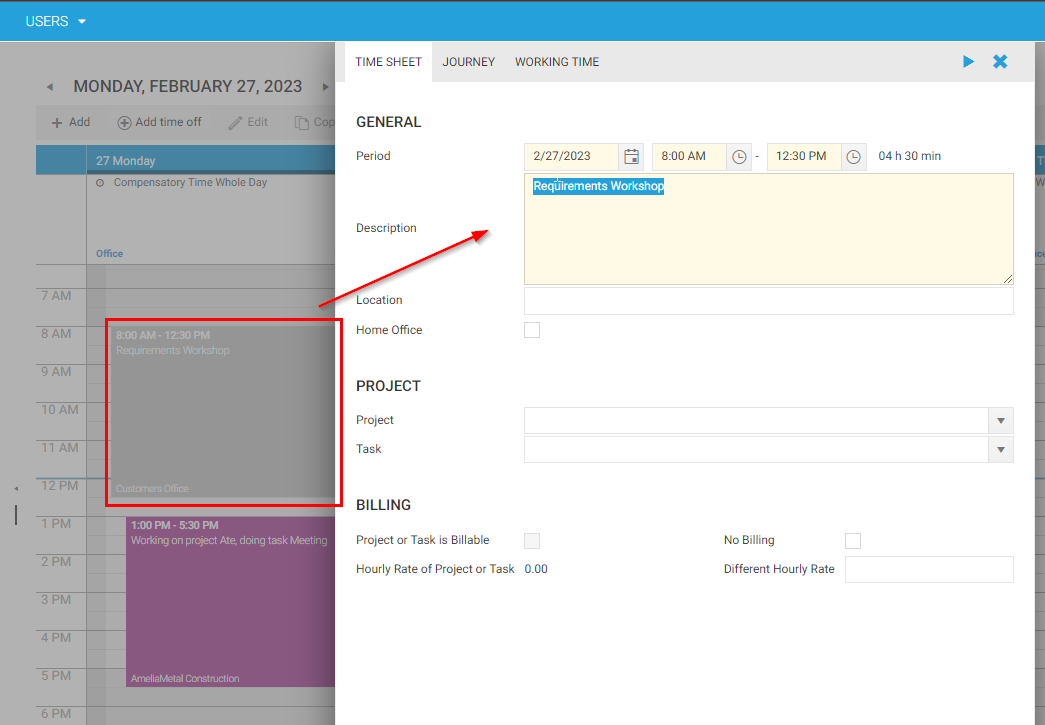
- Double-click the appointment in your calendar
- Time cockpit creates a new timesheet entry with:
- ✓ Start time (from appointment)
- ✓ End time (from appointment)
- ✓ Description (from appointment title)
- ✓ Location (if in appointment)
- Complete the entry by adding:
- Project/Task (required for billing)
- Additional notes or details
- Mark as billable (if applicable)
- Click Save
Use cases:
- Convert client meetings to billable time
- Log internal meetings to correct projects
- Track travel time from calendar events
- Capture conference calls and webinars
Viewing Sent Emails
Sent emails appear in calendar:
- Timeline view shows when emails were sent
- Email subject displayed
- Helps reconstruct what you worked on
Using email data for time tracking:
- Reference point: "I emailed client at 2pm, so I worked on their project from 1-3pm"
- Activity indicator: Bursts of emails = active work on topic
- Client communication: Count as billable time for some clients
- Retroactive tracking: Fill in gaps by reviewing email activity
Creating entries from emails:
- See sent email in calendar (e.g., "Proposal sent to Acme Corp")
- Click to create new time entry for that timeframe
- Enter project: Acme Corp
- Description: "Prepared and sent project proposal"
- Save
Security & Privacy
Permissions Requested
Time cockpit requests read-only access:
- ✓ Read calendar appointments
- ✓ Read sent emails
- ✗ Cannot send emails on your behalf
- ✗ Cannot modify or delete appointments
- ✗ Cannot access email content (only metadata: subject, time, recipients)
Data Storage
- Calendar and email data is not stored on time cockpit servers
- Data is fetched on-demand when you refresh
- Only timesheet entries you create are stored in time cockpit
- Appointments and emails remain in Office 365
Revoking Access
To disconnect time cockpit from Office 365:
- Navigate to Office 365 Account Settings
- Find "Time Cockpit" in connected apps list
- Click Remove or Revoke Access
- Confirm removal
Time cockpit will no longer display appointments or emails.
Troubleshooting
Appointments Not Showing
Problem: Enabled Office 365 but don't see appointments
Solutions:
- Verify sign-in: Check that you're logged in (look for Office 365 icon/status)
- Click Refresh: Manually refresh to fetch latest data
- Check date range: Ensure calendar is viewing dates with appointments
- Verify calendar has events: Log into Office 365 web (outlook.office.com) to confirm appointments exist
- Re-authenticate: Sign out and sign back in to Office 365 in time cockpit
Login Window Not Appearing
Problem: Clicked "Sign In" but no login window appears
Solutions:
- Check background windows: Press Alt+Tab (Windows) or Cmd+Tab (Mac) to find popup
- Check browser popup blocker: Allow popups for web.timecockpit.com
- Try different browser: Some browsers block OAuth popups
- Clear browser cache: Clear cache and cookies, try again
Emails Not Displaying
Problem: Appointments show but emails don't
Solutions:
- Verify "Show Office 365 sent mails" is enabled in Settings
- Check date range: Emails only show for dates you're viewing
- Confirm emails were sent: Log into Outlook web to verify sent emails exist in that timeframe
- Permission issue: Re-authenticate to Office 365 to ensure email read permission granted
Performance/Slow Loading
Problem: Calendar loads slowly after enabling Office 365
Solutions:
- Large calendar: If you have 1000s of appointments, initial load takes longer
- Network speed: Slow internet = slow Office 365 data fetch
- Disable if not needed: Turn off Office 365 integration when not actively using it
- Use day view: Day view loads less data than week/month
Comparison: Office 365 vs. Local Outlook
| Feature | Office 365 Integration | Local Outlook (Desktop Only) |
|---|---|---|
| Calendar sync | ✅ Yes (via Office 365 cloud) | ⚠️ Limited (desktop client only) |
| Email sync | ✅ Yes (sent emails) | ⚠️ Limited |
| Authentication | OAuth (secure, passwordless) | N/A |
| Works in web client | ✅ Yes | ❌ No (desktop only) |
| Works on mobile | ✅ Yes | ❌ No |
| Requires subscription | Yes (Office 365/M365) | No (but desktop client only) |
Recommendation: Use Office 365 integration for best experience, especially if using web client or mobile.
Related Features
Time Tracking
- Time Sheet Calendar - Main calendar interface
- Working with Timesheet Entries - Creating and editing entries
- Timesheet Templates - Automate recurring entries
Other Integrations
- Web API Overview - Build custom integrations
- Data Import - Import from other systems
- Data Export - Export to other tools
Mobile & Access
- Mobile Guide - Using time cockpit on phones/tablets
- Web Client - Browser-based access
See Also
FAQs:
- User FAQ - General time tracking questions
- Employee FAQ - Daily time entry questions
Website Resources:
- Integration Features - Overview of time cockpit integrations
For Office 365 integration support, contact support@timecockpit.com or see the User FAQ.